
Restore Deleted User
In some situations, a user's access to the application may need to be revoked for various reasons, such as employee termination, branch or department transfer, role change, project change, or other organizational changes.
To prevent unauthorized access, an LAM Admin can remove the user from the application, which restricts the user's access.
However, there may be situations where a previously deleted user needs to be granted access to the application again. To support this requirement, the application provides the Restore Deleted User feature.
This feature allows an LAM Admin to restore a previously deleted user and grant the required access to the application.
How to Restore a Deleted User
Log in to the application using an account with LAM Admin privileges.
Select the LAM option

It will open LAM Management Page, where user can be searched, added or edited.
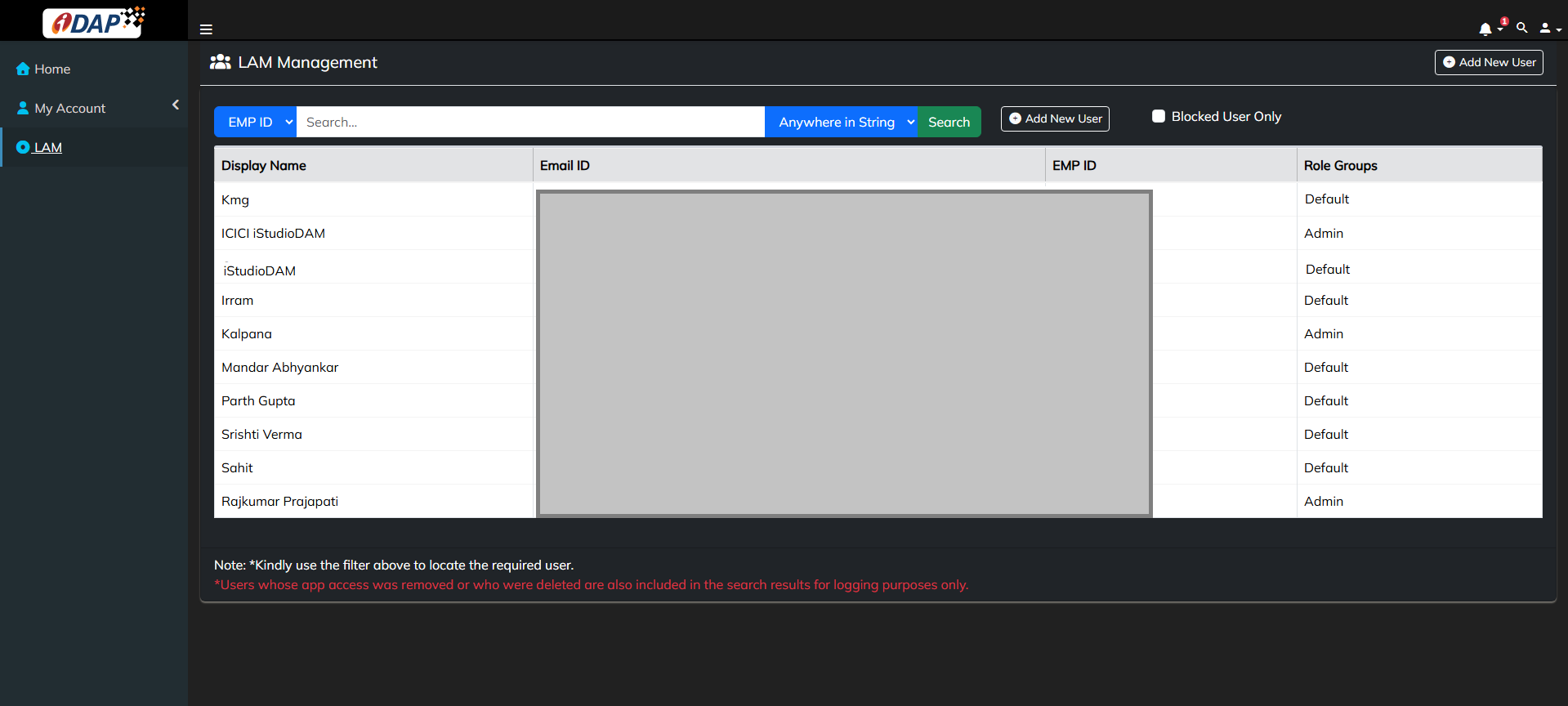
A deleted user can be restored using two different methods, depending on whether the user's existing record is available for selection.
- Restore Using User Search
- Add User Using Existing Details
Method 1: Restore Using User Search
If the deleted user's record is available in the system, the Admin can search for and restore the user directly.
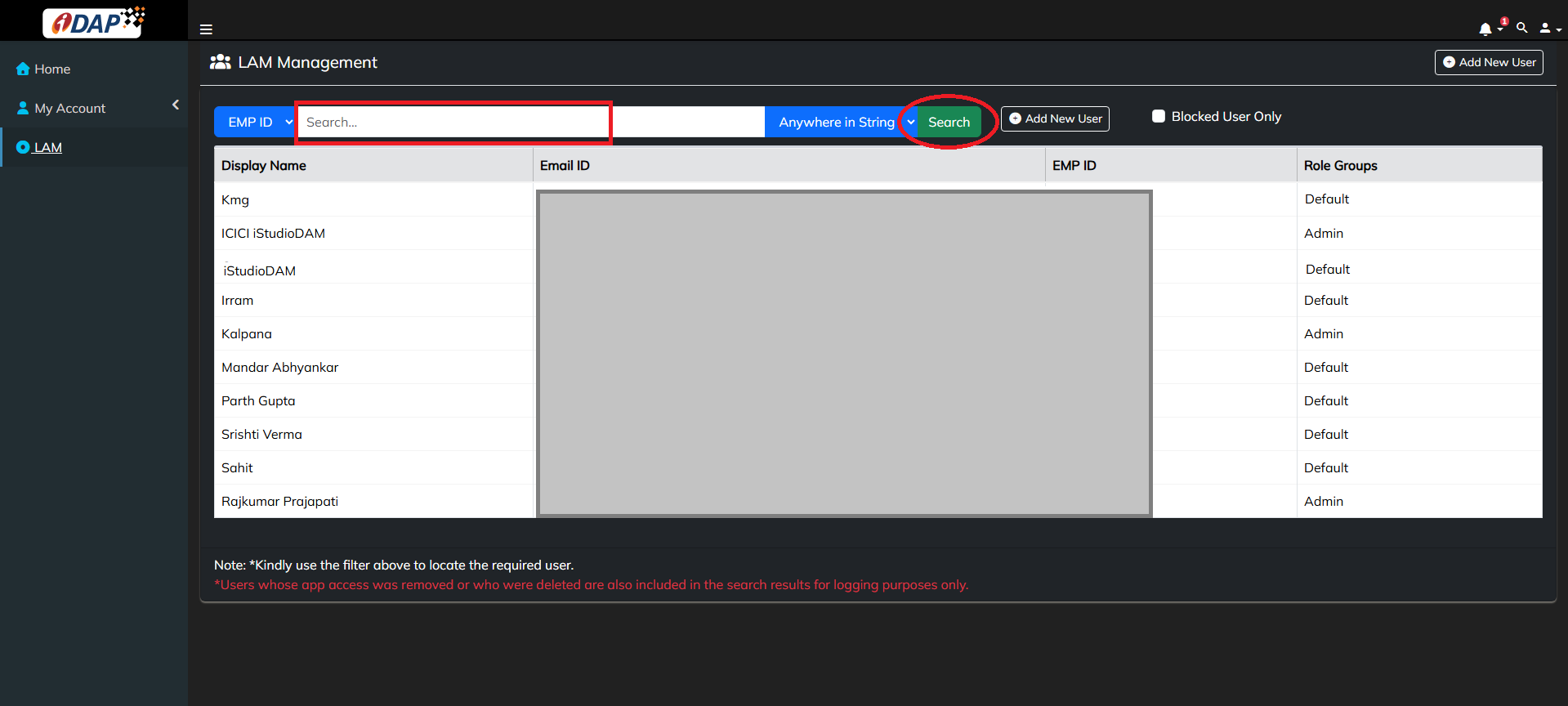
On the LAM Management page, use the Search feature to search for the required user. The system will search for the user and display the matching records in the user list.
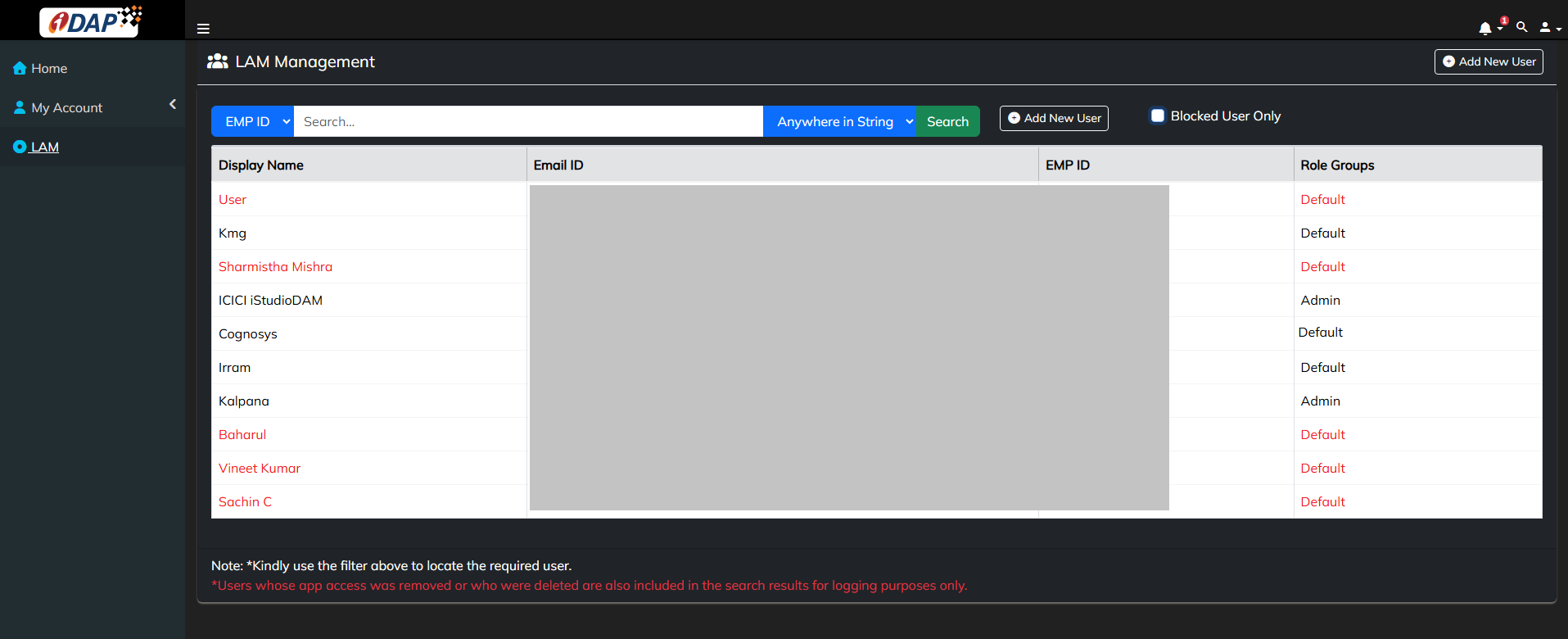
To differentiate between active and deleted users, the system displays deleted users in red, while active/non-deleted users are displayed in the standard black color.
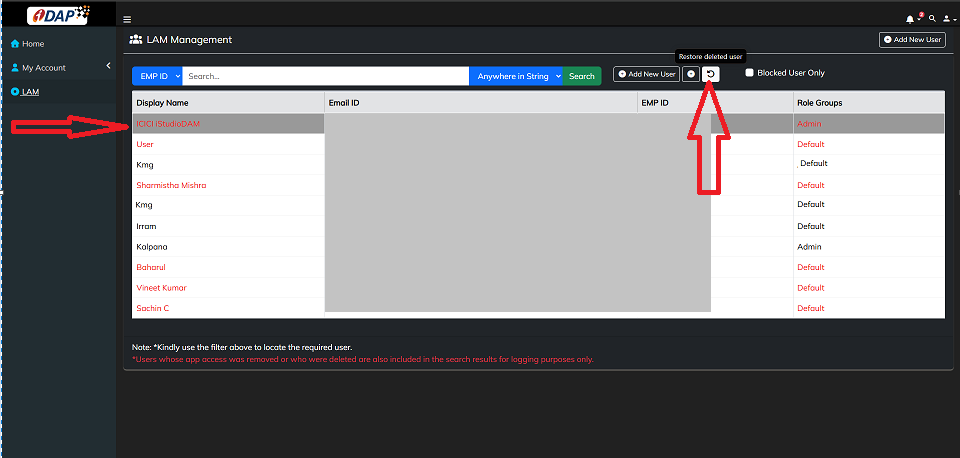
Now, select the specific deleted user you want to restore from the user list displayed on the page. Once the user is selected, multiple action options will be enabled.
Select the "Restore Deleted User" option to proceed with the restoration.
This will open a popup form containing the pre-filled details of the deleted user, along with an option to confirm whether you want to restore the user.
If you want to proceed with the restoration:
- Enter a valid reason for restoring the user.
- Click "Yes, Restore User" to submit the restoration request.
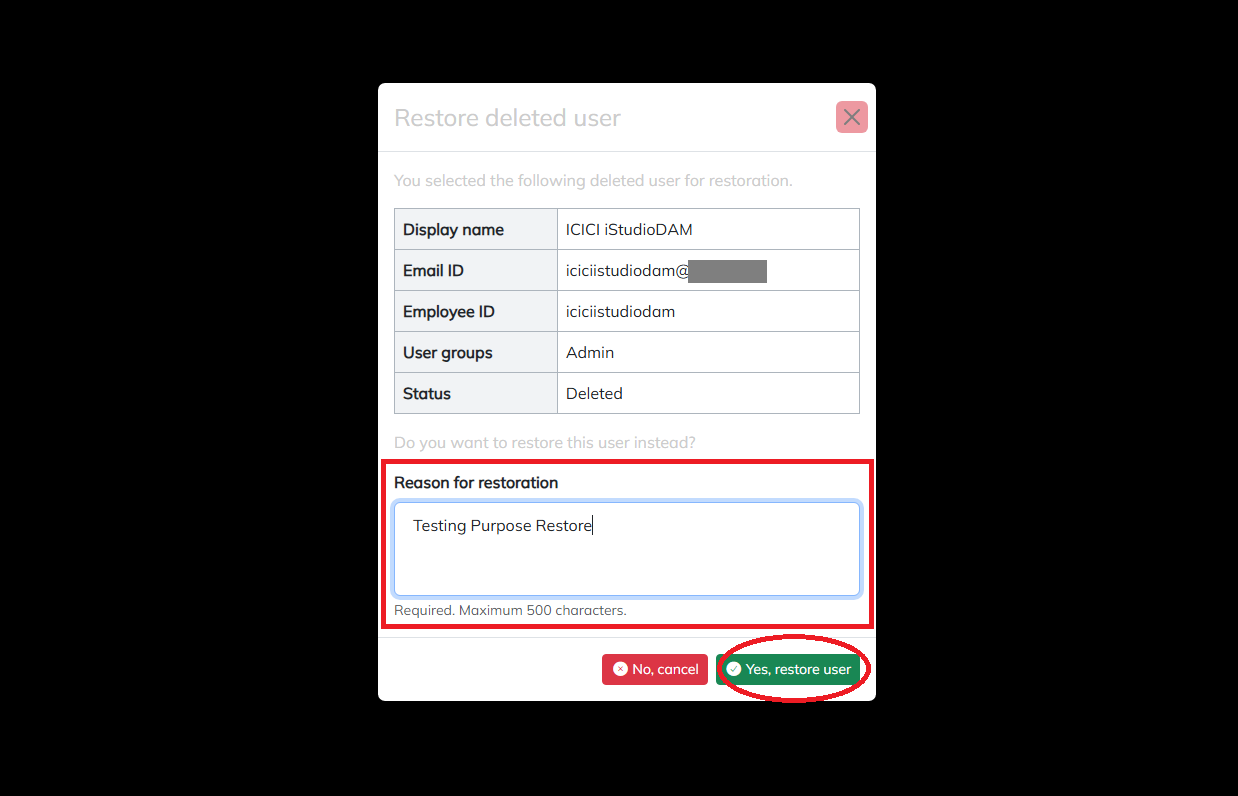
The application will then send the request to the server for processing. Once the user has been successfully restored, a confirmation message will be displayed on the screen.
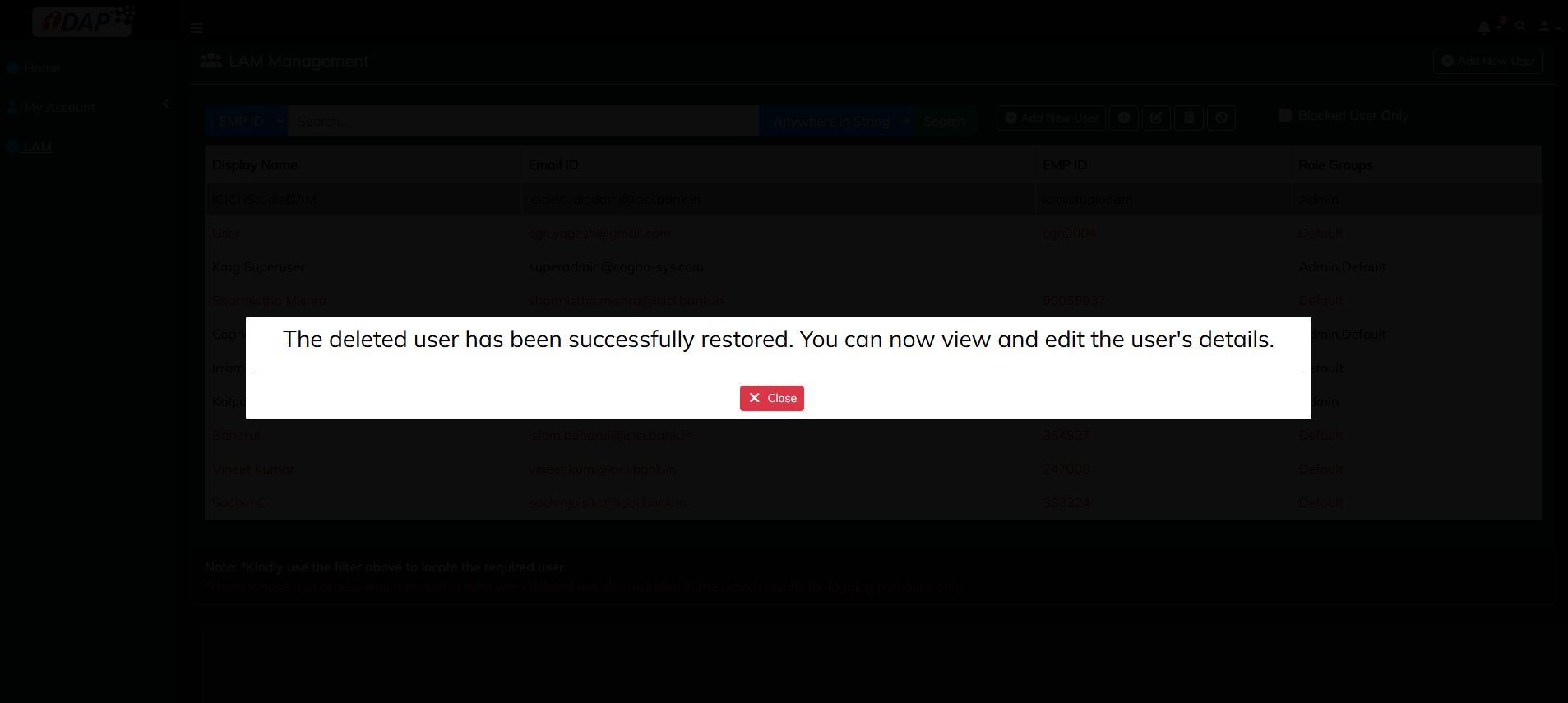
Method 2: Add User Using Existing Details
In case the LAM Admin is not aware that the user was previously deleted and attempts to add the user again using the exact details associated with the deleted user, the application will identify the existing deleted user record.
on LAM Management page, select the option to Add New User.
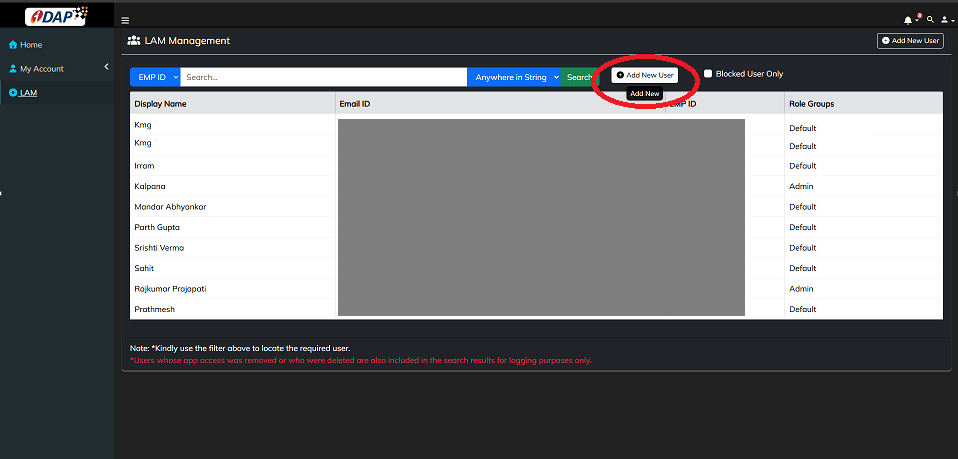
Enter the user's details and click "Save". The application will validate the entered Employee ID and Email ID against the existing user records in the system.
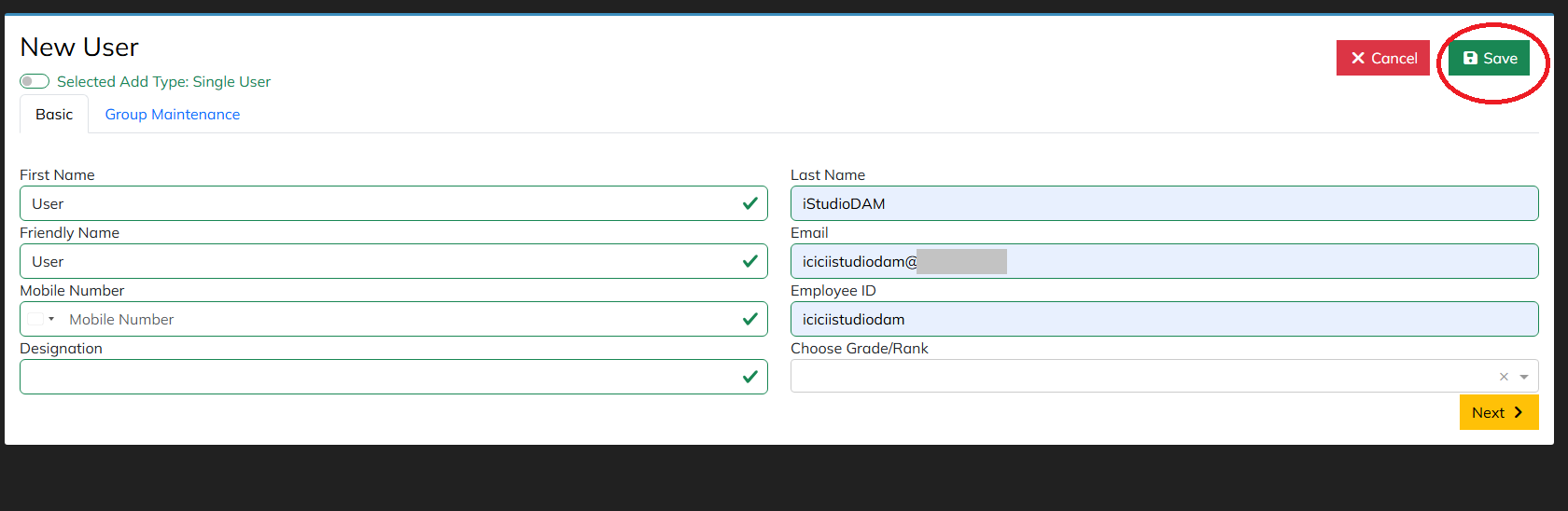
If either the Employee ID or Email ID matches an existing user record, and that user is already marked as deleted, a popup will appear displaying the matching deleted user record.
If the displayed user is the same user the Admin intends to restore, the Admin can restore the user by:
- Entering a valid reason for the restoration.
- Clicking "Yes, Restore User".
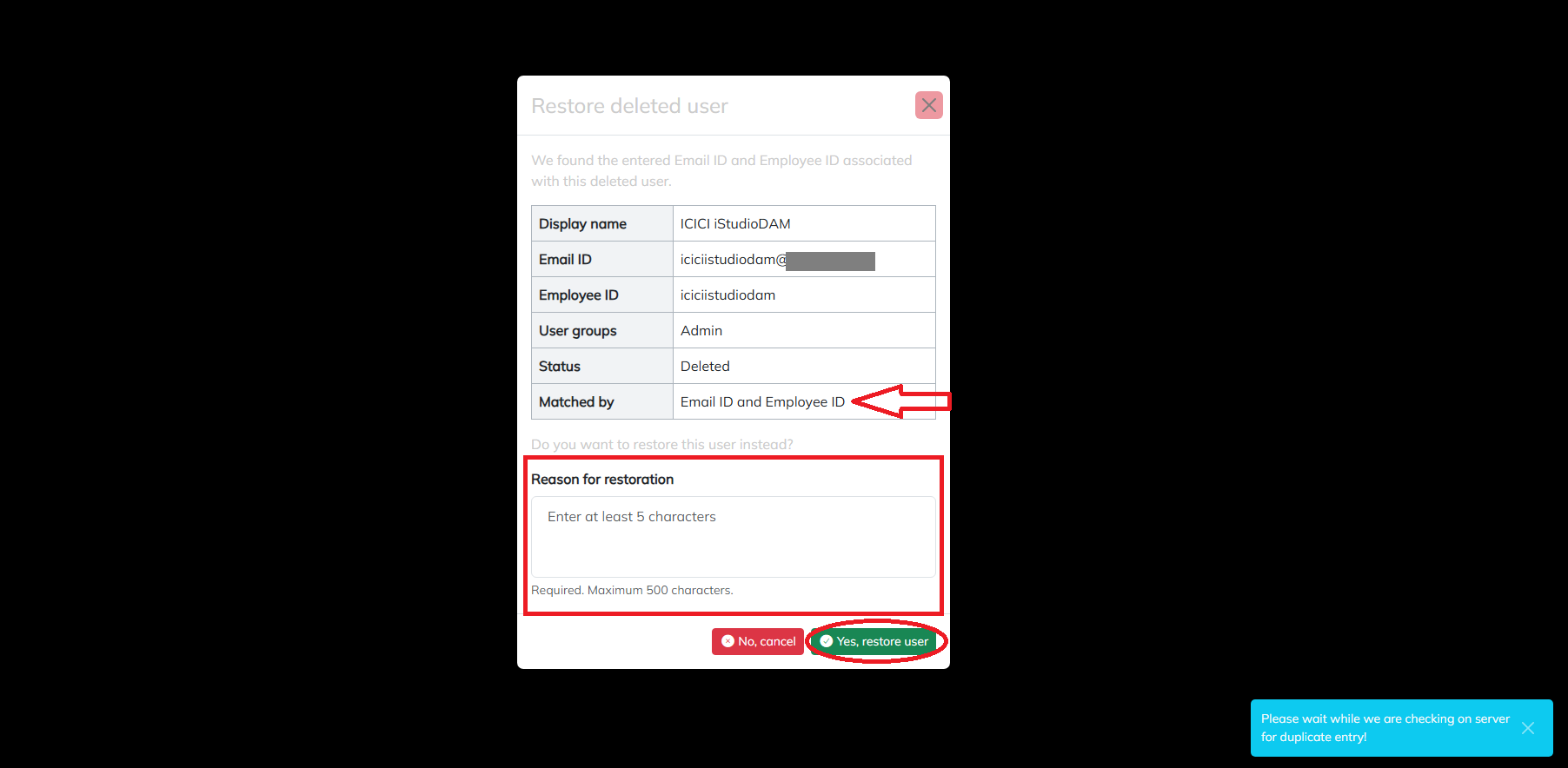
The application will then submit the restoration request to the server. Upon successful restoration, a confirmation message will be displayed on the screen.
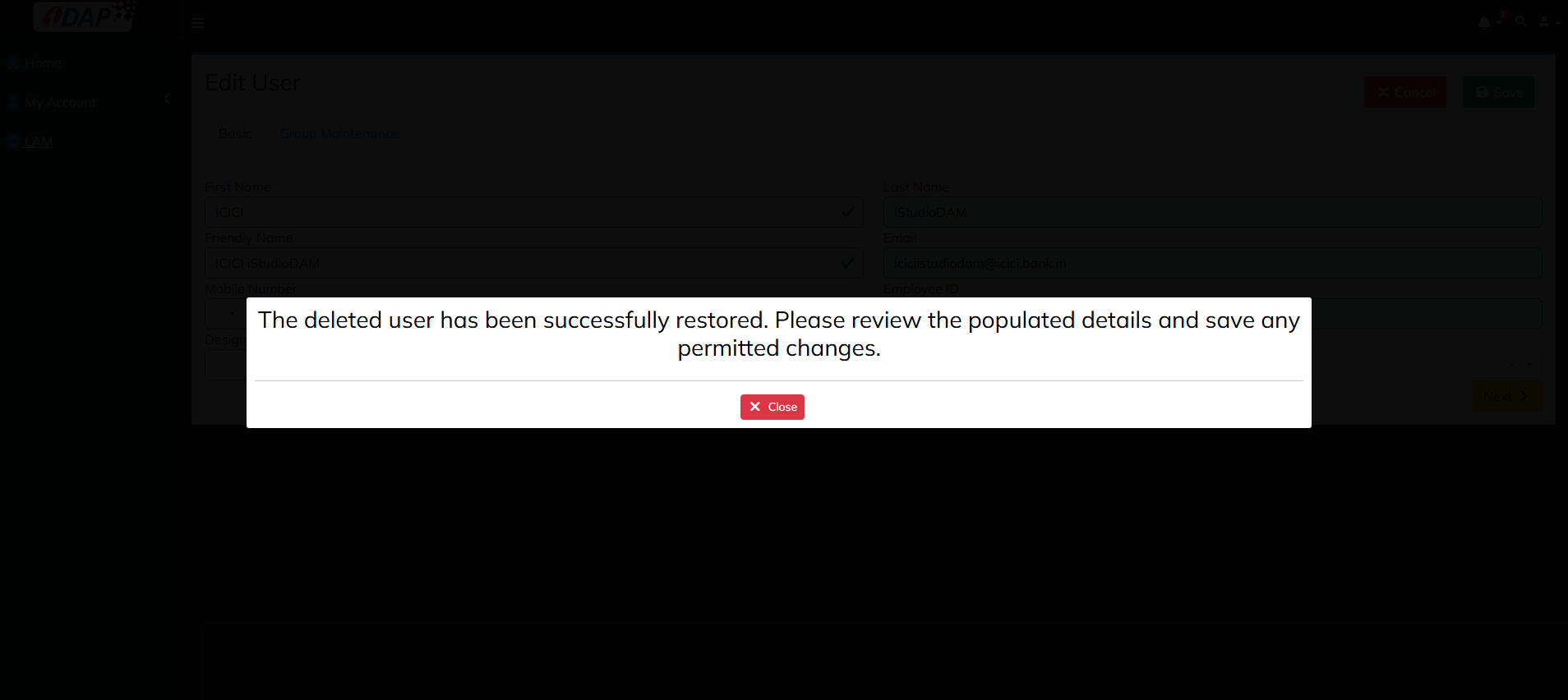
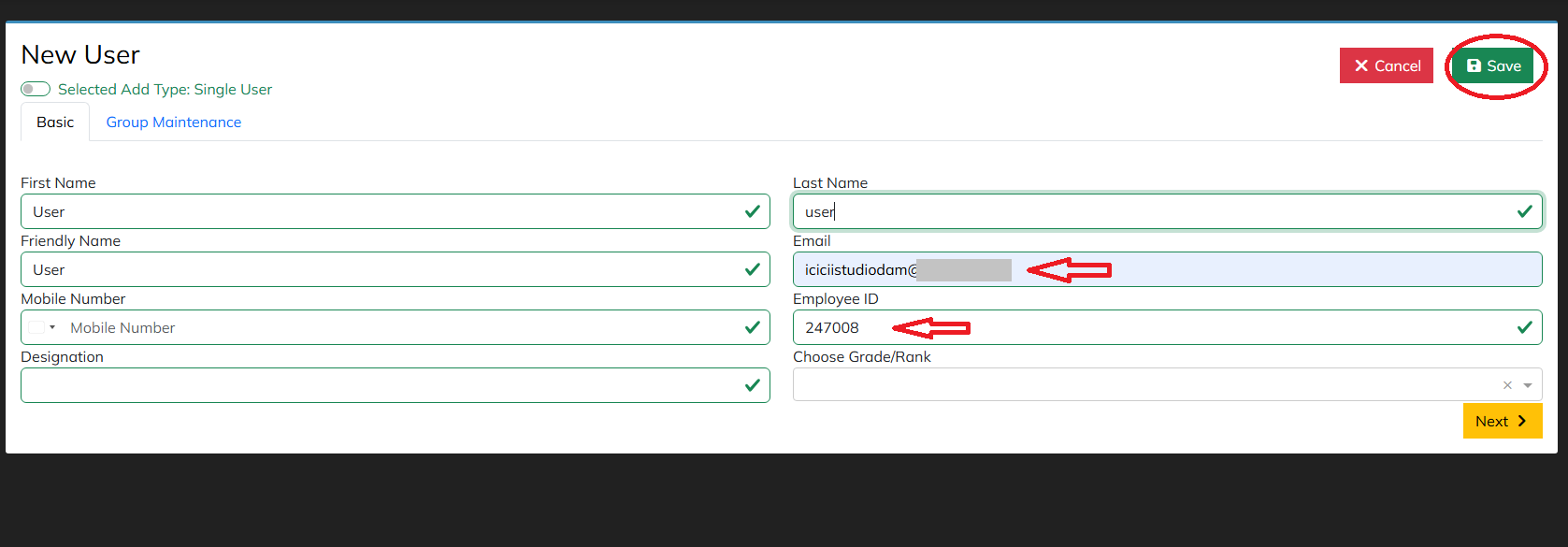
Since the Admin was attempting to add a new user but instead restored an existing deleted user, the deleted user's details will be automatically populated in the Edit User form.
The Admin can review the populated details and make any necessary changes. Once the required updates are made, click "Save" to update and store the restored user's details.
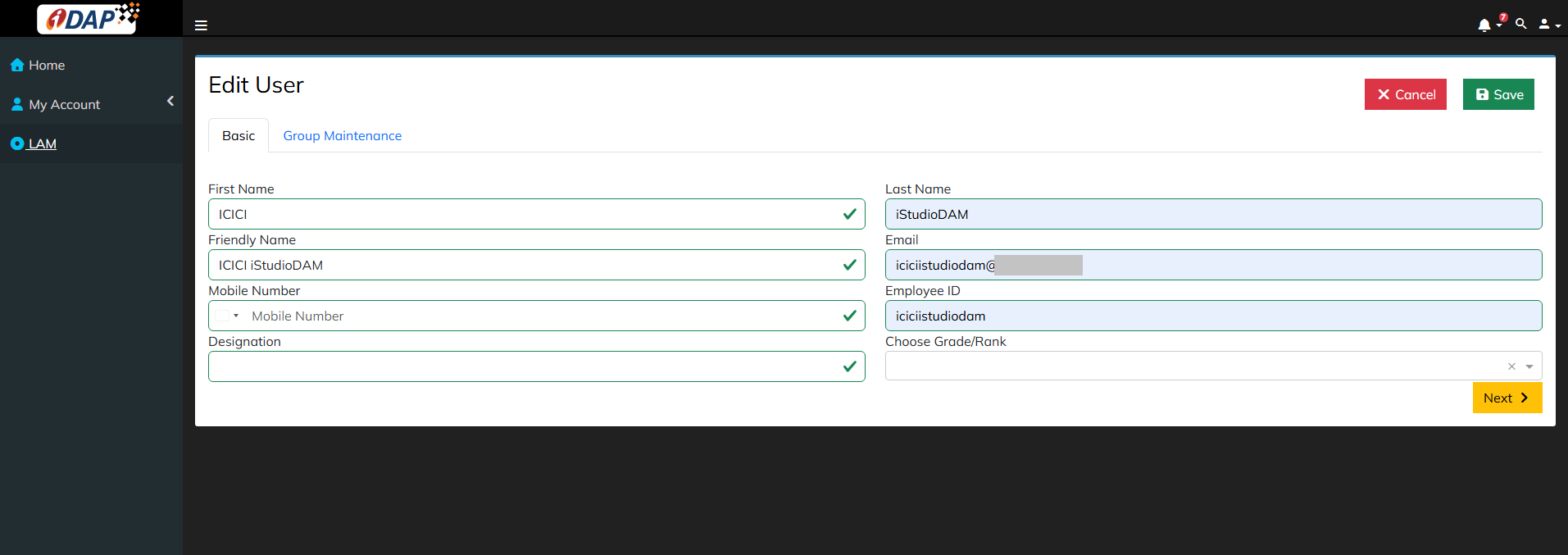
Important: When using the second method, ensure that the user details match the previously deleted user's details accurately. This helps ensure that the correct user record is restored and the appropriate access is granted.
Once the user is successfully restored, notification mail will be sent to user and the user's access to the application will be reinstated based on the applicable roles and permissions.
What if the Entered Details Match Multiple Users?
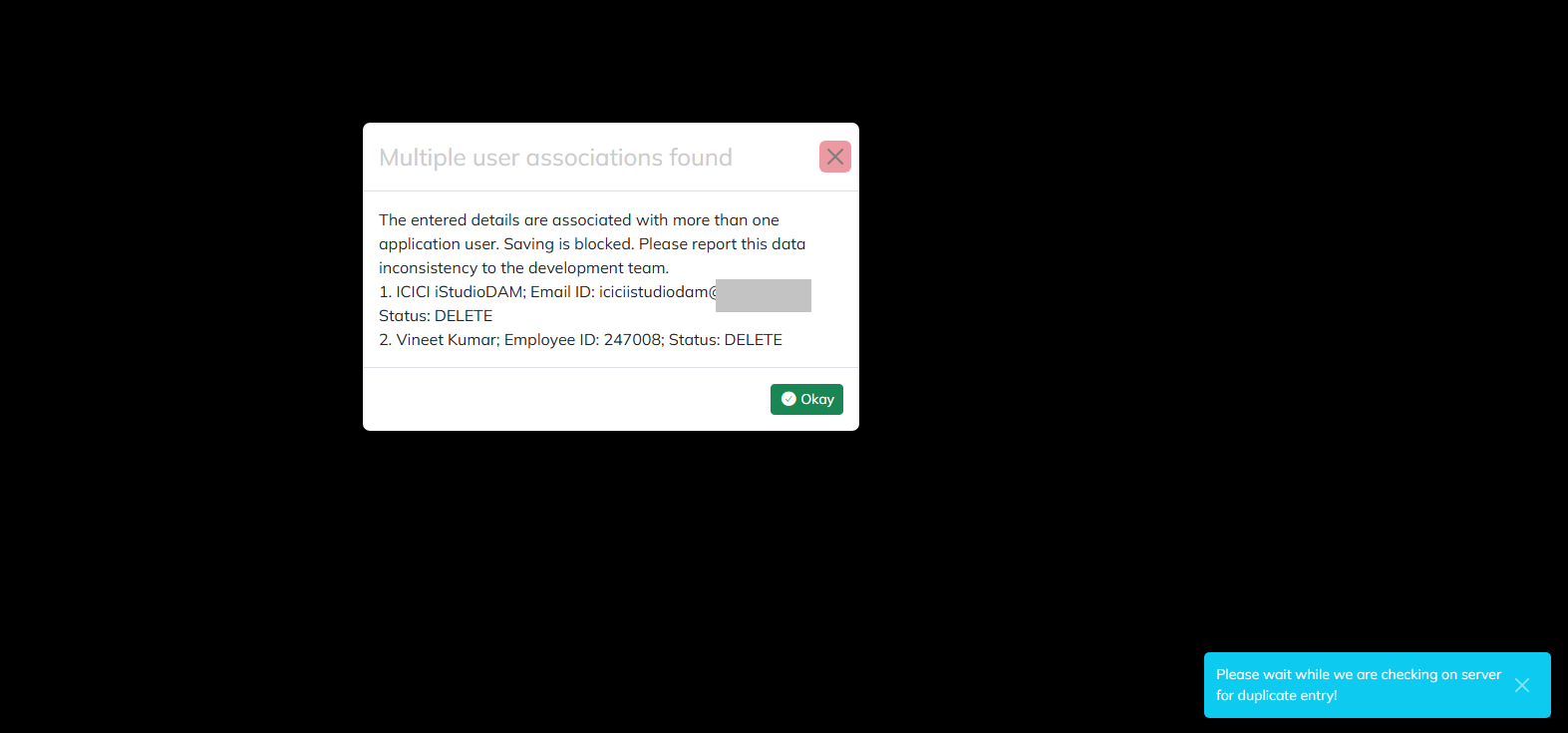
If the entered Employee ID or Email ID matches multiple user records in the system, the application will not prompt the Restore Deleted User option, even if one or more of the matching users have already been deleted.
Instead, the application will display an error notification indicating that multiple matching user records were found. The Admin should review and correct the entered details before proceeding.
Important Note
- Only users who were previously deleted from the application can be restored using this feature.
- Please review the user's details and assigned access carefully before completing the restoration.
- Ensure that the restored user's role and permissions are appropriate for their current responsibilities.